 Carlos E. Torres
CarrierBar: Putting My Thermostats in the Menu Bar
I wanted the temperature of my house next to the clock on my Mac, not inside an app on my phone. CarrierBar is a small, open source menu bar app that reads and controls my thermostats through Carrier's private cloud API, stays live over a websocket, and survives an API that never quite agrees with itself.
October 12, 2026 · 19 min read


A thermostat on the hallway wall is a great piece of interface design, and almost nobody thinks of it that way. You never decide to check it. You walk past, the number is there, and you already know whether the house is comfortable. If it is not, you press the arrow once and keep walking.
Smart thermostats quietly took that away. My house has two Carrier units, and everything they know lives in the Carrier SmartHome app on my phone. The data got richer. The glance disappeared. Finding out whether the second unit is keeping up now means unlocking a phone, opening an app, and waiting for it to load. Nudging it one degree means all of that and a few more taps.
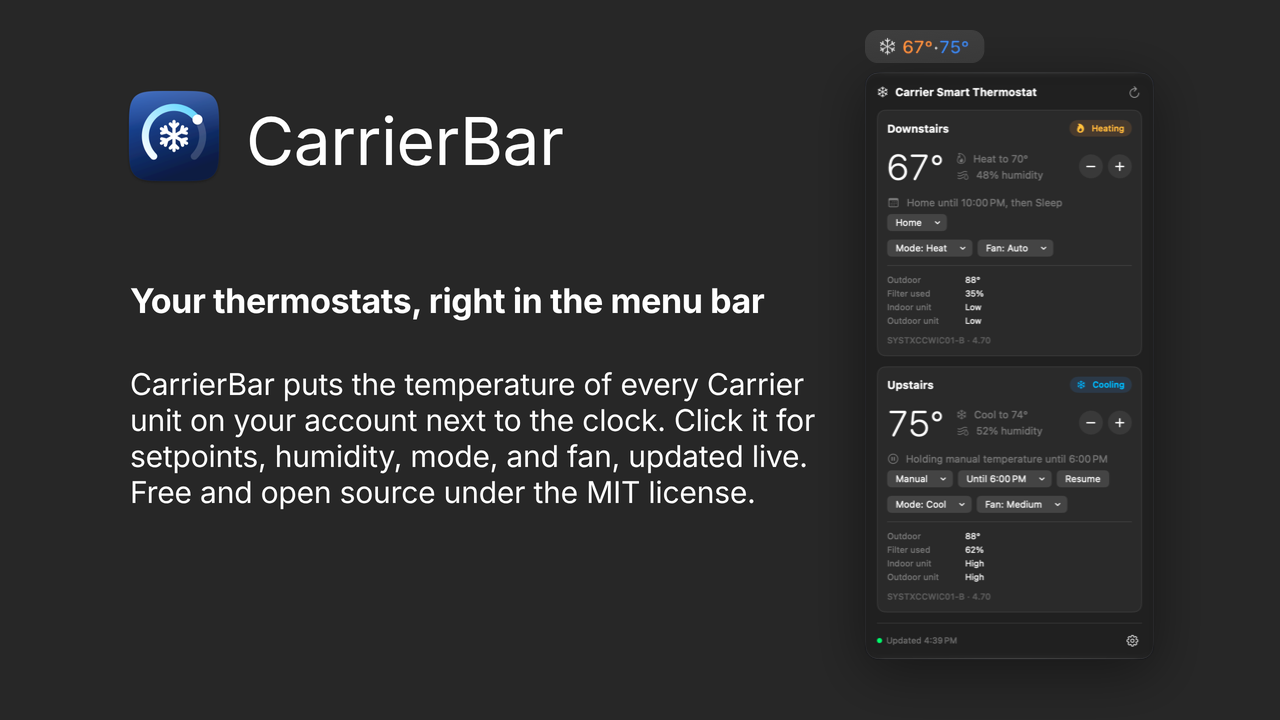
So I put the glance back somewhere I already look all day. CarrierBar is a small macOS menu bar app that shows the current temperature of every Carrier unit on my account, right next to the clock. Click it and a panel opens with the details and the controls I actually reach for: temperature, comfort profile, mode, and fan. It is free, open source under the MIT license, and the code is on GitHub.
What it shows
The menu bar item is a snowflake followed by one temperature per unit, something like 67°·75°. Each temperature is tinted by what its unit is doing: orange while heating, blue while cooling, and the normal menu bar color when idle. You can tell which unit is working without opening anything. Like MyKeepass, it has no Dock icon and no window until you ask for one.
Getting color into the menu bar took a small trick. macOS draws a menu bar item's label as a template image, which keeps the shape and throws away the color. So CarrierBar renders the snowflake and the temperatures into an ordinary image with SwiftUI's ImageRenderer, at the screen's scale, and tells macOS it is not a template. The orange and blue survive.
Clicking it opens a panel with a card for each unit. The room temperature sits up top in large type, with the target setpoint and humidity next to it and − and + buttons on the right. Under that, a schedule row says what the unit is doing in plain sentences, like "Wake until 10:30 PM, then Sleep" or "Holding Away until 6:00 PM", with menus to hold a comfort profile, choose when the hold ends, or resume the schedule. Then come the Mode and Fan menus, and below them the outdoor temperature, how much of the filter is used, the state of the indoor and outdoor units, and the model and firmware. A badge says whether the unit is cooling, heating, idle, or offline.
The footer shows when the data was last updated, with a small green dot while live updates are flowing, and a gear menu with Settings, About, Sign Out, and Quit. Settings is a real macOS Settings window, with launch at login on the General tab and the version, links, and disclaimer on About.
It works with both families of Carrier hardware, Infinity systems and Carrier Smart Thermostats. Each enabled zone becomes its own entry, sorted by name. If two systems share a default name like "HVAC", the app appends the last four digits of the serial number so you can tell them apart.
There is no public API, so I used the one the apps use
Carrier does not publish an API for homeowners. Its phone app and the my.carrier.com portal both talk to a private GraphQL backend, authenticated with tokens from Carrier's Okta server at sso.carrier.com. CarrierBar talks to that same backend.
I did not have to map it from scratch. Bren Dahl's carrier_api, an MIT licensed Python client that also powers the ha_carrier Home Assistant integration, had already worked out the GraphQL operations, the authentication flow, and the realtime protocol. CarrierBar follows its lead, in Swift, as a native Mac app.
The honest caveat belongs up front. An undocumented API can change or disappear any day, and nothing about this project is affiliated with or supported by Carrier. Use it with your own account only, and remember that it changes real settings on real equipment, the same as the Carrier app does. I treat that risk as a design constraint rather than a footnote, and most of the interesting engineering in this app came out of it.
Signing in, three ways
Authentication took more work than I expected, because the obvious path is not always the one people can use.
Password. Your Carrier account email and password go once to the same sign in mutation the apps use. The password is never stored.
Web. CarrierBar opens my.carrier.com in its own window. You sign in there the way you normally would, and once a second the window checks the portal's localStorage for its session. When the session shows up, CarrierBar takes the tokens and closes the window by itself. Closing it right away matters. A portal page left open would keep renewing the same session CarrierBar now owns, and two clients taking turns with one refresh token is a good way to end up with one of them signed out. For the same reason, if the portal's token is within two minutes of expiring, CarrierBar waits for the portal to renew it first.
That window also taught me how OAuth popups work. The first version broke Google and Apple sign in: you would finish with Google and land right back on the portal's login form. The portal opens those providers with window.open, keeps a handle to the popup, watches it for the redirect, and reads the code out of it. My window loaded every popup into its own view, which replaced the very page that was waiting for the code. Now a popup gets a real window of its own, centered over the sign in window, and closes when the portal closes it.
Each sign in window also starts with empty storage that lives only in memory. A portal session kept from last time goes stale as soon as CarrierBar renews its refresh token, and the portal signs itself out when it fails to renew a stale session. Page loads and redirects are logged for debugging, with query values left out, because that is where codes and tokens travel.
Token. If you are already signed in at my.carrier.com in Safari or Chrome, you can hand that session over directly. Open the browser's JavaScript console on that page and run:
copy(localStorage.getItem('AUTH_DATA--1'))
Then paste the result into CarrierBar. That entry holds both the access token and the refresh token, so the app can keep the session alive on its own. The paste field is forgiving on purpose. It also accepts a bare access token, a Bearer value, or a whole Authorization header, and it digs through nested JSON to find the tokens.
Pro tip: After pasting the session into CarrierBar, close the my.carrier.com tab without signing out. Signing out ends the session you just handed over, and leaving the tab open means the browser and CarrierBar take turns renewing the same session.
Whichever way you sign in, everything ends up in a single item in the login Keychain: the account email, the tokens, and the expiry. Access tokens last 30 minutes, and the app renews them through Carrier's Okta token endpoint about a minute before they expire. If Okta rotates the refresh token, the new one replaces the old one. Concurrent renewals collapse into a single request, so a burst of API calls never spends the same refresh token twice. And refresh tokens only ever go to sso.carrier.com. If a pasted token names a different issuer, the app refuses it rather than send a refresh token somewhere it should not go.
Live, with safety nets underneath
A temperature in the menu bar is only useful if it is current. Polling every few seconds would be wasteful and would still feel slow, so CarrierBar keeps Carrier's realtime websocket open, the same one the apps use, and stacks fallbacks underneath it.
Push. Status messages carrying temperature, humidity, setpoints, or the cooling and heating state are merged into the current data the moment they arrive. Only the fields present in the message change.
Debounced refetch. Any other message, a configuration change for example, triggers a full fetch. Bursts are coalesced, so ten messages in four seconds cost one request.
Poll. A full fetch runs every 5 minutes as a safety net, and every minute while the websocket is down. Opening the panel also refreshes anything older than a minute.
Recovery. A dropped connection reconnects with exponential backoff, capped at five minutes. Waking the Mac from sleep reconnects and refreshes, after a short pause to let the network come back.
To watch it happen, filter Console.app by the subsystem com.cetorres.CarrierBar with debug messages on. The realtime category logs every websocket message, so you can see exactly what Carrier pushes when you change something in the phone app.
Decode like the API will surprise you
This is the lesson I would carry to any undocumented API. Carrier's responses are loose with types. The same kind of field can arrive as the string "74", the number 74, a boolean, "on" or "off", or the literal string "None". A strict Codable model treats every one of those surprises as a fatal error, and one odd value takes down the whole response.
So every scalar in CarrierBar goes through one tolerant type:
enum JSONScalar: Decodable, Hashable, Sendable {
    case string(String)
    case number(Double)
    case bool(Bool)
    case null

    init(from decoder: Decoder) throws {
        let container = try decoder.singleValueContainer()
        if container.decodeNil() {
            self = .null
        } else if let value = try? container.decode(Bool.self) {
            self = .bool(value)
        } else if let value = try? container.decode(Double.self) {
            self = .number(value)
        } else if let value = try? container.decode(String.self) {
            self = .string(value)
        } else {
            // An object or array where a scalar was expected. Ignore it instead of failing.
            self = .null
        }
    }
}
Typed accessors do the rest. double reads "74" and 74 the same way. bool understands "on", "yes", and "1". string treats "None" and empty strings as missing. One odd value becomes one missing detail on one card instead of a blank panel.
The same humility runs through the rest of the model. Infinity systems and Smart Thermostats return different shapes, so both are mapped into one Thermostat type before the interface ever sees them. Infinity reports states like "active_cool", Smart Thermostats say "Cool Stage 1", and both become the same Cooling badge. Infinity also reports the fan as "off" when it only runs with heating or cooling, and the panel shows that as Auto, because that is what it means. Every fetch runs both the Infinity query and the Smart Thermostat query, and if one fails while the other succeeds, you still get your thermostats. Schedules and comfort profiles get the same treatment: if they arrive in a shape the app does not expect, the unit shows up without its schedule row instead of failing to load.
Writing back, carefully
CarrierBar no longer just reads. Every control in the panel changes a real thermostat, and they all follow the same rules.
The mode decides what the buttons move. In heat mode the − and + buttons move the heat target, in cool mode the cool target, and in auto they shift both together. Carrier systems want a minimum gap between the two targets, 2°F or 1°C, so when one runs into the other, the other moves along. Targets stay between 50 and 90°F, or 10 and 32°C, and the app reads each unit's temperature scale to pick the right limits. The buttons only appear when the unit is online and in heat, cool, or auto.
Show it right away, send it once. Every change appears on the card the moment you make it. The − and + buttons go one step further. Five clicks on + should not become five requests to a cloud service that then has to reach a furnace, so the change goes out about a second after the last click, carrying only the final value. Each unit has its own timer, so adjusting upstairs never delays downstairs.
Hold it until Carrier agrees. This was the subtle part. Carrier does not report a change back right away, and the app is constantly pulling in fresh data from fetches and the websocket. If it trusted that data blindly, the card would snap back to the old value for a while, then jump forward again when the system caught up. So CarrierBar keeps every change as a pending edit, one kind each for setpoints, holds, and mode and fan, and lays them over everything that arrives until Carrier reports the same values or 90 seconds pass after the send. Mode and fan are tracked field by field, so a confirmed mode stops being pending even while the fan change is still on its way. Every fetch and every live update goes through one function before it reaches the interface:
private func withPendingEdits(_ fetched: [Thermostat]) -> [Thermostat] {
    guard !setpointEdits.isEmpty || !holdEdits.isEmpty || !modeEdits.isEmpty else { return fetched }
    return fetched.map { thermostat in
        var copy = thermostat

        if let edit = modeEdits[thermostat.id] {
            // Each field is done once Carrier reports it. The rest stays pending.
            var remaining = edit
            if let mode = edit.mode, copy.mode?.lowercased() == mode { remaining.mode = nil }
            if let fanMode = edit.fanMode, copy.fanMode?.lowercased() == fanMode { remaining.fanMode = nil }
            if remaining.isEmpty || Self.isExpired(edit.sentAt) {
                modeEdits[thermostat.id] = nil
            } else {
                modeEdits[thermostat.id] = remaining
                copy.apply(remaining)
            }
        }

        if let edit = holdEdits[thermostat.id] {
            let confirmed = edit.profileID.map {
                copy.isOnHold && copy.currentProfileID == $0 && copy.currentHoldLength == edit.hold
            } ?? !copy.isOnHold
            if confirmed || Self.isExpired(edit.sentAt) {
                holdEdits[thermostat.id] = nil
            } else {
                copy.apply(edit)
            }
        }

        if let edit = setpointEdits[thermostat.id] {
            let confirmed = copy.heatSetpoint == edit.heat && copy.coolSetpoint == edit.cool
            if confirmed || Self.isExpired(edit.sentAt) {
                setpointEdits[thermostat.id] = nil
            } else {
                copy.applyHeldSetpoints(heat: edit.heat, cool: edit.cool, until: edit.hold)
            }
        }
        return copy
    }
}
If it fails, say so. The pending edit is dropped, the card goes back to what the unit is really set to, and the panel says which unit could not be changed and why.
Holds, profiles, and the schedule
A temperature change on a thermostat is never just a temperature. It is a hold, and every hold needs an answer to one question: when does it end?
The − and + buttons answer it the way the hardware does. If the unit is already on a hold, the hold keeps its end time. If an Infinity zone is following its schedule, the new temperature holds until the next scheduled change, as it does when you press the arrow on the thermostat itself. A Smart Thermostat that is following its schedule holds until you change it.
The schedule row covers everything else. You can hold any comfort profile set up on the thermostat, like Home, Away, Sleep, or Wake, for 1, 2, 4, or 8 hours, or until you change it. Infinity zones also offer until the next scheduled change and until a time you pick. Resume ends the hold, and the unit follows its schedule again.
Two systems, two dialects. The API that sends "74" and 74 for the same field is no more consistent on the way in. Infinity holds a zone in an activity. A temperature change writes the new setpoints, as text, into the zone's manual activity and then holds the zone in it, and holding a profile is the same hold call with that profile as the activity. The hold ends at a time of day on the system's clock, and only on a quarter hour, so picked times are rounded to the nearest 15 minutes. A Smart Thermostat takes both setpoints in a single mutation, as numbers nested in objects, and holds for whole hours. It has no way to switch to a scene at all, so holding Away means holding Away's setpoints, and the panel names the hold after whichever profile those setpoints match. Resume turns its schedule back on and sends the setpoints of the profile the schedule calls for right now.
A countdown that starts over. A Smart Thermostat restarts its hold countdown with every change. Press + halfway through a timed hold, and the clock would quietly reset. So CarrierBar sends the time that is left instead, rounded up to whole hours. Timed holds also leave the schedule switched on, which is exactly how the first version of the app missed them. It now reads the hold length and the minutes left, and counts a timed hold as a hold.
An explicit null. Swift's synthesized Encodable leaves out optional fields that are nil. For Infinity's hold call, a missing end time does not mean "no end time". It means "keep the old one", so an earlier hold's end could carry over into a new hold that was supposed to last until changed. The fix is a hand written encoder that writes every field, so nil goes out as an explicit null:
func encode(to encoder: Encoder) throws {
    var container = encoder.container(keyedBy: CodingKeys.self)
    try container.encode(serial, forKey: .serial)
    try container.encode(zoneId, forKey: .zoneId)
    try container.encode(hold, forKey: .hold)
    try container.encode(holdActivity, forKey: .holdActivity)
    try container.encode(otmr, forKey: .otmr)
}
The house's clock, not the Mac's. Every schedule and hold time uses the thermostat's time zone. Infinity reports its local time with a UTC offset, and a Smart Thermostat reports its offset in hours, so "until 10:00 PM" means 10 PM at the house even when the Mac is somewhere else.
Mode and fan
The Mode menu offers Off, Heat, Cool, and Auto, plus Fan Only on Infinity. The Fan menu speaks each system's vocabulary: Auto, On, and Circulate on a Smart Thermostat, like the Carrier app, and Auto, Low, Medium, and High on Infinity. Changing either one leaves the temperature, the schedule, and the hold exactly as they were.
Where these settings live is the interesting part. On Infinity, the mode belongs to the whole system, not the zone, so switching one zone to Cool switches every zone on that system, and the panel updates all of them at once. The fan belongs to the activity the zone is in right now, so the change goes to that activity. On a Smart Thermostat, a mode or fan change sends only that one field with the zone's serial and index, so nothing else gets overwritten along the way.
One more honest caveat. The Infinity controls follow carrier_api and have not been tried on a real Infinity system yet. The Smart Thermostat fan values On and Circulate follow the lowercase pattern of the values the API reports, but have not been confirmed against a real unit either. If you have the hardware to try them, an issue on GitHub telling me what happened is the most useful contribution you could make.
Small app, tight boundaries
CarrierBar is now about 4,600 lines of Swift across 27 files. The app is a SwiftUI MenuBarExtra with a window style panel, a Settings scene for preferences, an @Observable store for state, and an actor for the API client, so token renewal, reads, and writes never step on each other.
Launch at login uses SMAppService, and the app never stores that setting itself. macOS owns it, and you can change it in System Settings at any time, so CarrierBar reads it back after every change and whenever Settings opens. If macOS wants the login item approved, the General tab links straight to System Settings › General › Login Items.
It runs sandboxed, and its only entitlement is outgoing network access. Passwords are never stored. Tokens never touch files or UserDefaults, and the logs never contain passwords or tokens. The Okta client ID in the source is the public identifier Carrier's own apps use. It is not a secret, and there is no client secret to leak.
There is also a demo mode. The CarrierBar Demo scheme launches with two invented units, makes no network requests, and never touches your saved session. It is how the screenshots get made, and the quickest way to try the interface without a Carrier account. The demo units have comfort profiles and a schedule, and every control works there. The card changes, and nothing is sent.
Try it
CarrierBar is at version 0.1.3 and there is no prebuilt download, so you build it yourself. You need macOS 14 or later, Xcode 16 or later, and the account you use in the Carrier SmartHome app.
git clone https://github.com/cetorres/carrier-ac-control.git
open carrier-ac-control/CarrierBar.xcodeproj
Press Run, click the snowflake in the menu bar, and sign in. After the first fetch, your temperatures appear next to it.
The roadmap is short and specific. Next is editing the weekly schedule and each profile's temperatures on Smart Thermostats. After that, a short name or icon next to each temperature, and a choice of which unit appears in the menu bar.
Why reading came first
I started this project wanting to control my AC from the menu bar. The first version only read, on purpose. Reading an undocumented API wrong costs you a stale number in the menu bar. Writing to it wrong costs you a warm house in August.
A day later the first write landed, the − and + buttons. The day after that came holds, comfort profiles, resume, mode, and fan. Almost none of it needed a new foundation. Writes go through the same request path as reads, so they renew tokens and retry an unauthorized call the same way. Confirmations arrive through the same fetches and websocket messages, decoded by the same tolerant types. The pending edit is the one genuinely new idea, and it only works because the data it sits on top of was already trustworthy. Every control after the first was a new kind of pending edit, not a new bet against an API I had only guessed at.
The thermostat on the hallway wall never asked for my attention. It told me the number when I walked by, and when the number was wrong, one press fixed it. That is the whole job of a thermostat display, and now it is the whole job of CarrierBar.